
What is INP?
Interaction to Next Paint (INP) is a Core Web Vital that measures how quickly a web page responds to user input — from the moment the browser receives a click, tap, or keystroke to the moment the next frame is painted onto the screen. A good INP score is 200 milliseconds or less at the 75th percentile of page visits.
Unlike First Input Delay (FID), which only measured the first interaction’s input delay, INP observes every interaction throughout the full lifecycle of the page and reports the worst one. Google replaced FID with INP as the responsiveness Core Web Vital in March 2024, making it a direct ranking signal for search.
What Counts as an Interaction?
An interaction is any user event that expects a visual response from the page. This includes:
- Clicking or tapping an interactive element — a button, a link, a checkbox, a toggle.
- Pressing a key — typing into a text input, hitting Enter to submit a form, using keyboard shortcuts.
Each of these produces one or more event callbacks (pointerdown, click, keydown, keyup, etc.). INP groups the related events into a single interaction and uses the longest event duration as the interaction’s latency.
How Interaction Duration is Measured
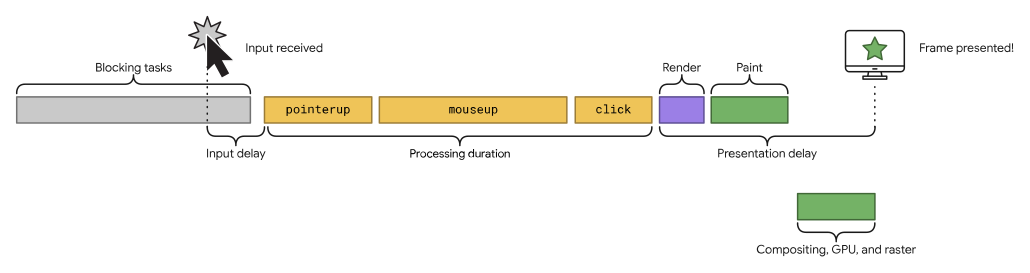
Every interaction consists of three phases:
Input delay — the time between when the user interacts and when the browser starts running the event handlers. This happens when the main thread is already busy with other work (like executing a long task) and cannot start processing the event immediately.
Processing time — the time the browser spends executing the event handler callbacks themselves. If you have multiple listeners on the same event (e.g.,
pointerdown,pointerup,click), they all run back-to-back during this phase.Presentation delay — the time between when the event handlers finish and when the browser paints the next frame. This includes style recalculation, layout, and compositing work needed to reflect the visual update on screen.
INP is the sum of all three phases — from the moment of input to the moment the updated frame is visible.
What is a Good INP Score?
INP reports the worst interaction on your page (technically the highest latency interaction, with some adjustment on pages with many interactions). The thresholds are:
- Good: 200 milliseconds or less
- Needs improvement: between 200 ms and 500 ms
- Poor: above 500 milliseconds
These thresholds are measured at the 75th percentile of page visits from real users, meaning 75% of your visitors need to experience an INP at or below the threshold for your page to be classified at that level.
Why INP Matters
INP is the most direct measurement of how responsive your site feels to the people using it. A user who clicks a button and waits 400 ms for something to happen will perceive the page as sluggish — even if it loaded instantly.
Unlike lab metrics like TBT, INP reflects real-world conditions: real devices, real network speeds, real user behavior. A good INP score means your site responds quickly to input across the board — not just on the first click, and not just on fast hardware.
Because INP is a Core Web Vital — alongside Largest Contentful Paint (LCP) and Cumulative Layout Shift (CLS) — it factors into Google’s page experience ranking signal. Improving INP benefits both user experience and search visibility.
How to Optimize INP
INP correlates well with Total Blocking Time (TBT) — the lab metric that measures how much the main thread is blocked during load. Reducing TBT is one of the most effective ways to reduce INP in the field. Here are the key areas to focus on.
Minimize Main-Thread Work
The main thread handles event handlers, layout, paint, and JavaScript execution. When it is overloaded, input delay spikes because the browser cannot start processing your event until the current task finishes.
Break up long tasks so the browser gets frequent opportunities to respond to user input. Use scheduler.yield() (or setTimeout as a fallback) to yield back to the main thread between chunks of work:
async function handleLargeUpdate() {
  updateCriticalUI();

  await scheduler.yield();

  processRemainingWork();
  sendAnalytics();
}
For a deeper dive into breaking up long tasks, see Optimize long tasks on web.dev.
Optimize JavaScript Bundles with Code Splitting
Large JavaScript bundles mean more parsing, compilation, and execution on the main thread during load — which directly increases input delay for any interaction that occurs while that work is in progress.
Split your code so each page only loads the JavaScript it actually needs. Frameworks like React, Next.js, and Vue all support route-based lazy loading:
const Settings = React.lazy(() => import('./Settings'));
Dynamic imports let the bundler create separate chunks that are loaded on demand rather than upfront. This keeps the initial bundle small and frees the main thread sooner. See Reduce JavaScript payloads with code splitting for more details.
Minimize Hydration Cost and Optimize Renders
In frameworks that use hydration (React, Vue, Svelte, Solid), the client-side JavaScript re-attaches event listeners and reconstructs component state after the server-rendered HTML arrives. This hydration work runs on the main thread and can block interactions.
To reduce hydration cost:
- Use selective hydration — frameworks like Astro and Qwik only hydrate components that need interactivity, leaving static content alone.
- Avoid unnecessary re-renders — in React, use
React.memoanduseCallbackto prevent child components from re-rendering when their props haven’t changed. Every unnecessary render is main-thread work that could delay the next interaction.
const Counter = React.memo(function Counter({ value, onIncrement }) {
  return (
    <div>
      {value} <button onClick={onIncrement}>+</button>
    </div>
  );
});
For a full walkthrough of preventing unnecessary re-renders, see Optimizing React Performance on DebugBear.
Keep Third-Party Scripts Off the Main Thread
Analytics tags, chat widgets, and A/B testing scripts all compete for main-thread time. If a third-party script is running a long task when the user clicks, the interaction is delayed until that task finishes.
Use requestIdleCallback to defer non-critical third-party work to moments when the browser is idle:
requestIdleCallback(() => {
  initAnalytics();
  loadChatWidget();
});
For scripts you cannot defer, consider moving them into a web worker with Partytown so they run off the main thread entirely. The less third-party code running on the main thread, the faster your page can respond to the interactions that matter.
References