
What is LCP?
LCP is the render time of the largest image, text block, or video visible in the viewport — measured from when the user first navigates to the page. It’s one of Google’s Core Web Vitals.
A good LCP score is under 2.5 seconds. Between 2.5s and 4s needs improvement. Anything above 4s is poor. For the “good” threshold to count, at least 75% of your page loads have to hit it.
Why It Matters
The business case for LCP is unusually strong. Here are four numbers worth knowing:
- A good LCP reduces page abandonment by 24%
- Vodafone improved their LCP by 31% and saw an 8% increase in sales
- MDTV improved LCP by 55% and saw a 50% reduction in bounce rate
- Tokopedia improved LCP by 55% and saw a 23% increase in session duration
What Counts as the LCP Element?
The browser considers four types of elements:
<img>tags<image>tags inside an SVG- Elements with a CSS
background-imageloaded viaurl() - Block-level text elements (not inline)
The CSS background-image problem
Anything loaded through CSS url() — background images, large fonts — is considered slow. The browser doesn’t preload or request these resources until it knows which DOM node needs them. That only happens after the CSS has been downloaded and parsed, which is late.
There’s a workaround: nest a zero-size <img> inside the element with the background image. The browser sees the <img> tag early in the markup and can start fetching it right away.
<div style="background-image: url(image-url)">
  <img src="image-url" width="0" height="0" />
</div>
What the browser ignores
Not every large element counts. The browser applies a few heuristics to filter out non-contentful elements:
- Opacity 0: The element isn’t visible to the user yet. It won’t count until it becomes visible.
- Full-viewport elements: An image or div that covers the entire viewport is treated as a background, not content.
- Low-entropy images: Placeholders and blurred previews don’t count.
How element size is reported
- Clipped elements: If an element extends beyond the viewport or overflows, only the visible portion counts toward its size.
- Images: The browser reports whichever is smaller — the intrinsic (original) size or the visible size. This prevents gaming the metric by scaling up a small image.
- Text: The browser uses the smallest rectangle that fits the text.
- Margins, padding, and borders don’t count.
How the Browser Picks the LCP Element
The browser dispatches a PerformanceEntry of type largest-contentful-paint as soon as it paints the first frame. Every time a larger element renders, it dispatches another entry.
A few things to know:
- If a new large element appears later in the page load — even if it’s not that much larger — the browser reports a new entry.
- If the current LCP element is removed from the viewport or the DOM, it stays as the LCP candidate unless something bigger renders after it.
Load Time vs. Render Time
LCP reports render time, not load time. There’s always a gap between when a resource finishes downloading and when the browser actually paints it — decoding and processing the resource takes time.
One edge case worth knowing: if an LCP image is preloaded or its rendering is delayed, LCP might get reported earlier than FCP (First Contentful Paint). That’s a sign something isn’t right.
How to Measure LCP
In the lab:
- Chrome DevTools
- Lighthouse
- PageSpeed Insights
- WebPageTest
In the field (real user data):
- Chrome User Experience Report (CrUX)
- PageSpeed Insights
- Google Search Console
web-vitalsJavaScript library
What Affects LCP
- DNS, TCP, and TLS negotiation
- Redirects
- TTFB (Time to First Byte)
- First Paint
- First Contentful Paint
How to Optimize LCP
Avoid image-based LCP
The single best optimization is to not have an image as your LCP element at all. Text renders without a network request, so an LCP that’s text sidesteps the entire image loading problem.
If it has to be an image, here’s what to do.
Core rules
- Don’t lazy load your LCP image.
- Don’t fade in your LCP image.
- Always host your own LCP image.
- Don’t build your LCP on the client.
- Minify CSS and remove unused classes.
- Compress images and use WebP or AVIF.
fetchpriority
The fetchpriority attribute tells the browser to treat an image as high priority during the initial fetch phase, overriding its default priority based on position in the document.
<img src="hero.jpg" alt="Hero" fetchpriority="high" />
Note for Safari: it fetches any cross-origin resource immediately without waiting for high-priority resources, so fetchpriority has less impact there.
How the browser downloads resources
Tight mode
During the initial load, the browser operates in “tight mode.” It won’t start downloading low-priority resources — like images — if there are already two or more requests in flight.
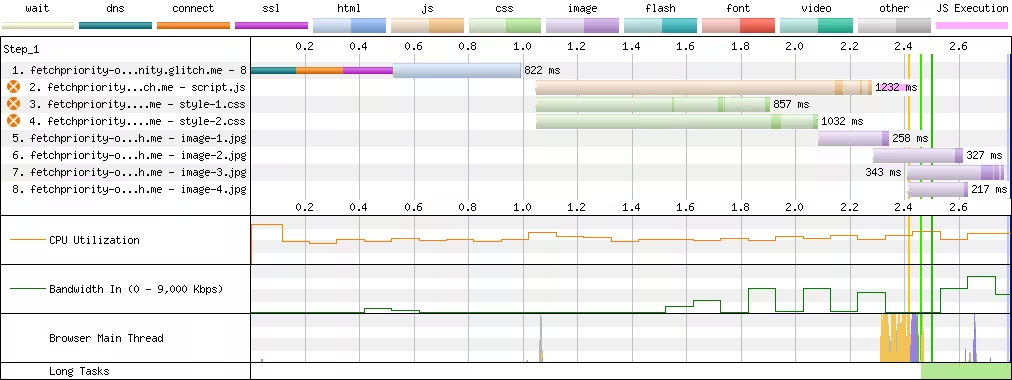
Setting fetchpriority="high" on your LCP image moves it out of the low-priority bucket so tight mode can’t hold it back.
Preconnect
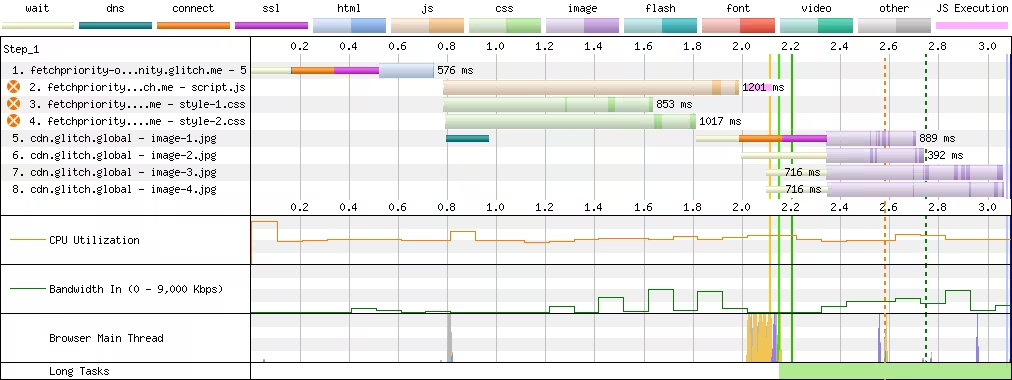
If your LCP image lives on a separate domain — a CDN, for example — the browser has to open a connection to that domain before it can download anything from it. DNS lookup, TCP handshake, TLS negotiation. That all takes time.
Use <link rel="preconnect"> to start the connection early:
<link rel="preconnect" href="https://cdn.example.com" />
Preload
Preload is for late-discovered content — resources the browser can’t find in the initial HTML scan, like images loaded by JavaScript or CSS. If your LCP image is already in the markup, you don’t need preload.
If you do need it, combine preload with fetchpriority:
<link rel="preload" as="image" fetchpriority="high" href="https://cdn.example.com/hero.jpg" />
To let the browser pick the right image size for each device, use imagesrcset and imagesizes:
<link
  rel="preload"
  as="image"
  fetchpriority="high"
  imagesrcset="hero-400.jpg 400w, hero-800.jpg 800w"
  imagesizes="(max-width: 600px) 400px, 800px"
/>
More things that help
- Google prefers progressive images.
- Deliver the smallest amount of data each page needs.
- Use a CDN.
- Eliminate third-party JavaScript.
- Use code splitting.
- Avoid
import *.
// Bad: all helpers are bundled even if only one is used
const createDateHelpers = () => {
  const formatDate = () => { /* ... */ };
  const dateToUtc = () => { /* ... */ };
  return { formatDate, dateToUtc };
};

// Good: each function is exported individually — bundlers drop what isn't imported
export const formatDate = () => { /* ... */ };
export const dateToUtc = () => { /* ... */ };

export const createDateHelpers = () => ({
  formatDate,
  dateToUtc,
});
References
- web.dev: Optimize Largest Contentful Paint
- Request Metrics: Measuring Largest Contentful Paint
- Vodafone: A 31% improvement in LCP increased sales by 8%
- CSS Wizardry: Optimising Largest Contentful Paint
- Web Performance Calendar: LCP(FE)
- web.dev: Fetch Priority
- Kevin Farrugia: Fetch Priority and Optimizing LCP
- Evan X. Merz: How to Optimize LCP on the Client Side
- Performance @ Shopify: Improve LCP by Removing Image Transitions